|
Windows XP / Microsoft Explorer / Outlook
Express
CVC Internet's Primary Connection Number:__________________________ CVC Internet's Secondary Connection Number:________________________ Use the connection numbers shown above, as noted in the instructions below Please Note: You must have
previous experience configuring software programs, in order to
utilize these instructions. You will be responsible
for any changes or additions made on your computer system. If your operating system has a Setup Wizard,
please take the information from Before completing these instructions, make
sure your computer is operating ************************************************************* DO NOT
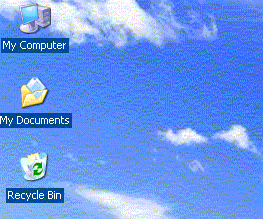
MAKE ANY OF THESE CHANGES, ************************************************************* - Step 1: Dial-up Configurations for CVC Internet - 1.) When the computer is turned on, the Windows XP system will open a main screen named the desktop. On the desktop, double-click on the "My Computer" icon (see example below).
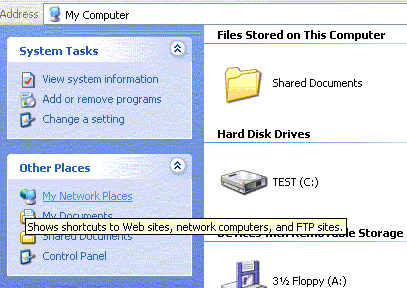
2.) In the left side menu of the "My Computer" window, single-click on "My Network Places" (see example screen below).
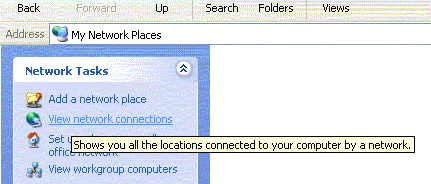
3.) In the left side menu of the "My Network Places" window, single-click on "View Network Connection" (see example below).
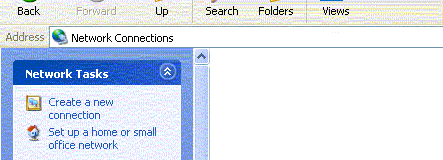
4.) In the left side menu of the "Network Connections" window, single-click on "Create New Connection" (see example below).
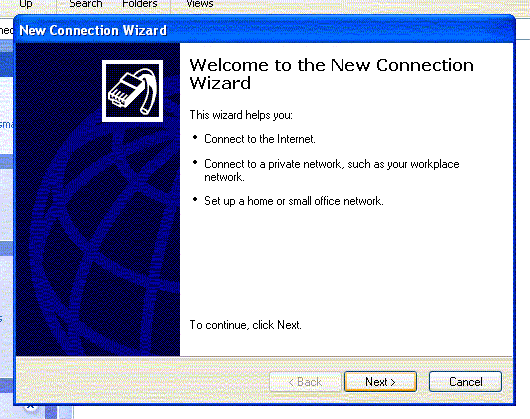
5.) In the "Welcome to the New Connection Wizard"
screen, click on the "Next" button (see sample
screen below).
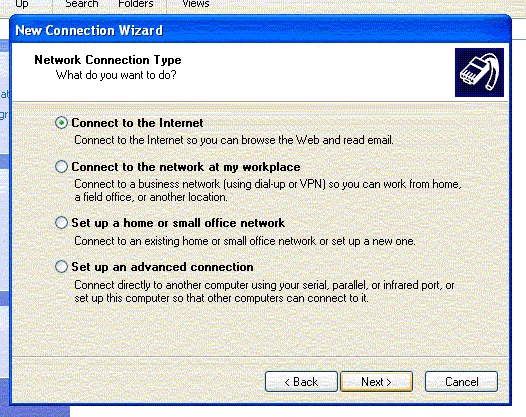
6.) In the next screen "Network Connection Type", select the
option "Connect to the Internet", then click on the "Next"
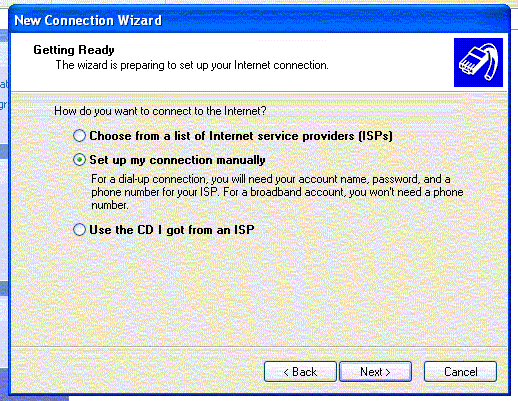
button (see sample screen below). . 7.) In the "Getting Ready" screen, select "Set up my connection manually", then click the "Next" button (see example below).
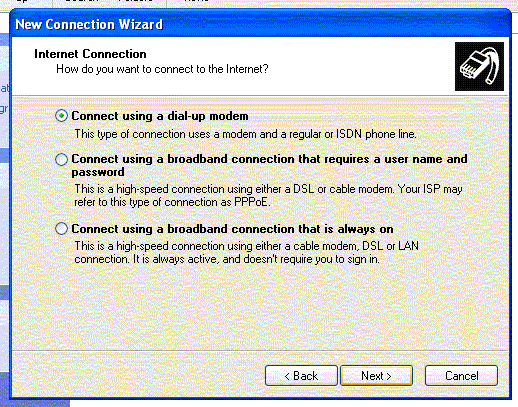
8.) In the "Internet Connection" screen, select the option
"Connect using a dialup modem",
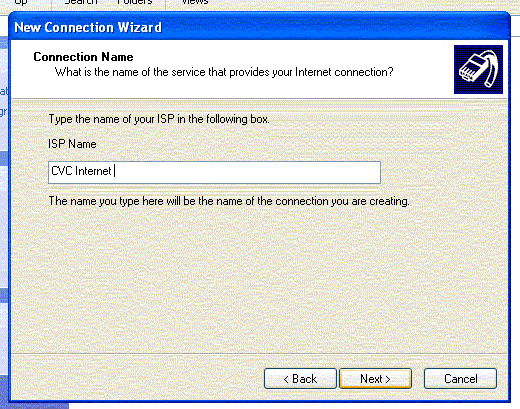
9.) In the "Connection Name" screen, "ISP Name" field,
enter: CVC Internet then click on the "Next" button (see
example below).
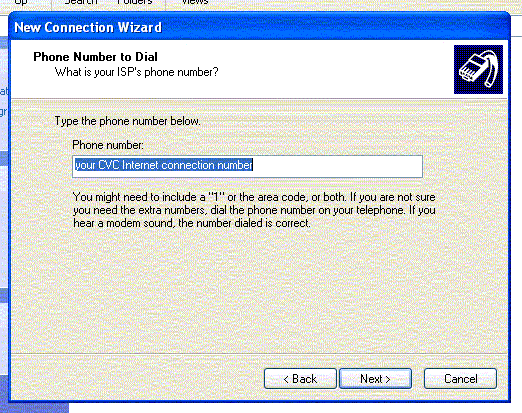
10.) In the "Phone Number to Dial" screen, "Phone Number" field, enter: the connection number ( #1), shown on page 1 of these instruction sheets, then click the "Next" button (see example below).
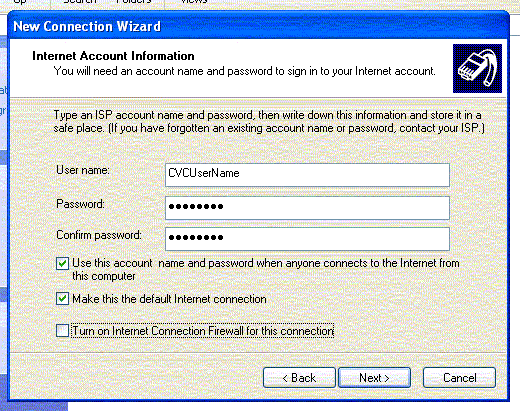
11.) In the "Internet Account Information" screen, complete the following (example shown below).
Towards the bottom of the "Internet Account Information" screen, select the following options:
At the bottom of the "Internet Account Information" screen, click on the "Next" button.
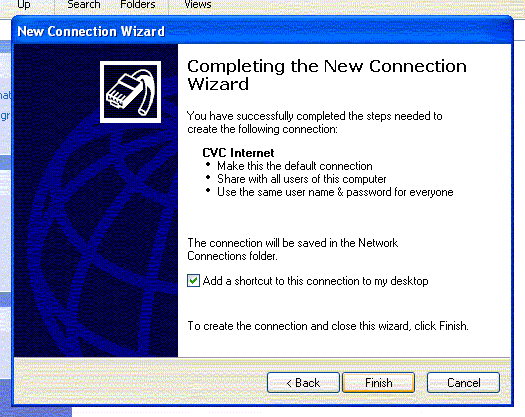
12.) In the "Completing the New Connection Wizard" screen, select
the option
13.) In the "Network Connections" window, "Dialup" screen,
right-click (once)
14.) In the "CVC Internet Properties" window, click on the "General" tab. In the "General" screen, "Connect Using” field, click on the “Configure” button. In the “Modem Configuration” screen, set the “Maxium Port Speed” to 56,000 and then click O.K. 15.) In the “General” screen, “Phone number" section, complete the following: ·
In the "Area Code" field, enter: Make sure this window is blank. · In the "Phone number" field: Verify the CVC connection number. · In the "Country/Region Code" field: Do Not Change · Select the option: "Show icon in notification area when connected". ·
"Use
dialing rules": Do Not
Select 16.) Beside the "Phone number" field (in the "CVC
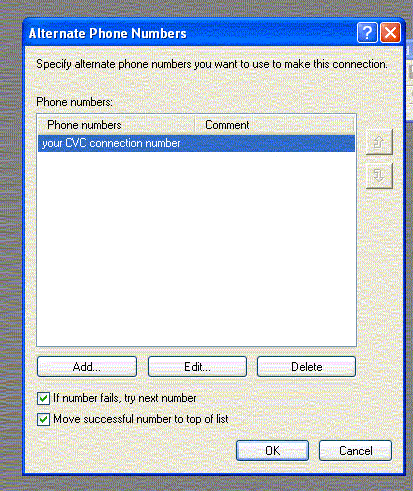
Internet Properties" window, "General" screen), In the "Alternate Phone Number's" screen, select the following options (see example below): · "If number fails, try next number" · "Move successful number to top of list" In the "Phone number" section (in the "Alternate Phone Number" screen), click on the "Add" button.
17.) In the "Add Alternative Phone Number" screen, "Phone
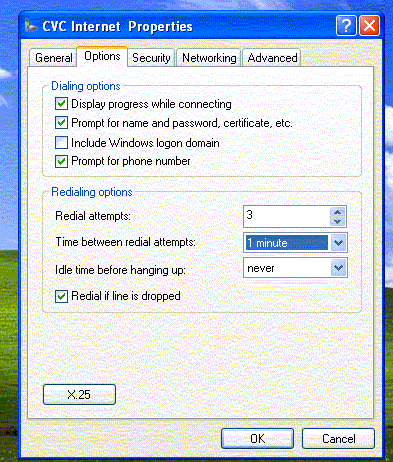
number" section, · In the "Area code" field, enter: Make sure the window is blank. · In the "Phone number" field, enter: your secondary CVC connection number (as shown above, on page 1 of these instruction sheets). · In the "Country/region code" field, select: Do Not Change · Use dialing rules: Should be blank. At the bottom of the “Add Alternatives Phone Number” screen, click "OK". 18.) In the "Alternative Phone Numbers" screen, click "OK". 19.) In the "CVC Internet Properties" window, click on the "Options" tab. In the "Options" screen, "Dialing options" section, select the following (example screen next page): · "Display progress while connecting" · "Prompt for name and password, certificate, etc" · "Prompt for phone number" · "Redial if line is dropped" In the "Redialing Options" section, complete the following: · "Redial Attempts": this is an optional setting, adjust setting according to your needs. · "Time between attempts": this is an optional setting, adjust setting according to your needs. · "Idle time before hanging up", select: never
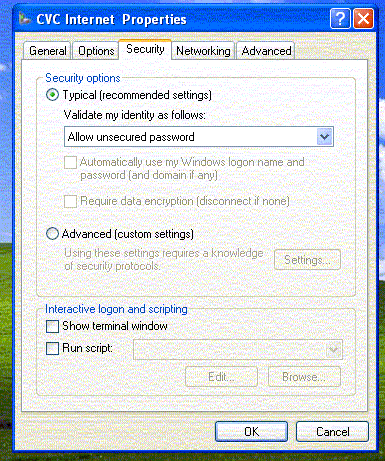
20.) In the "CVC Internet Properties" window, click on the "Security" tab. In the "Security" screen, "Security options" section, select
the option:
21.) In the" CVC Internet Properties" window, click on the
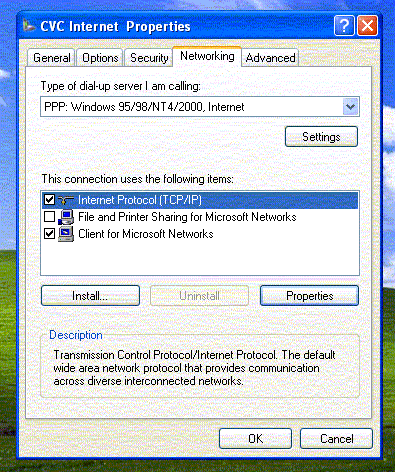
"Networking" tab, ·
In the field "Type of dial-up server I am
calling": "This connection uses the following items": Make sure these items are selected: · "Internet Protocol (TCP/IP)" · "Client for Microsoft Networks" * If File and Printer Sharing for Microsoft Networks is selected, leave the option check marked.
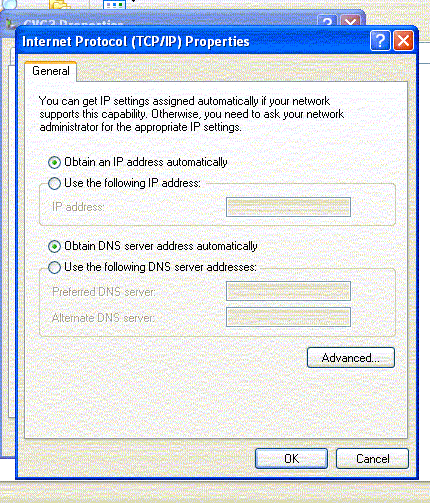
22.) In the field "This connection uses the following items" (in the "CVC Internet Properties" window, "Networking" screen), click once on "Internet Protocol (TCP/IP)" (make sure the check mark is still selected by this option), then click once on the "Properties" button. In the "Internet Protocol (TCP/IP) Properties" window, "General" screen, select the following options (sample window below): · "Obtain an IP address automatically" · "Obtain DNS server address automatically" Towards the bottom of the "Internet Protocol (TCP/IP) Properties" window, click on the "Advanced" button.
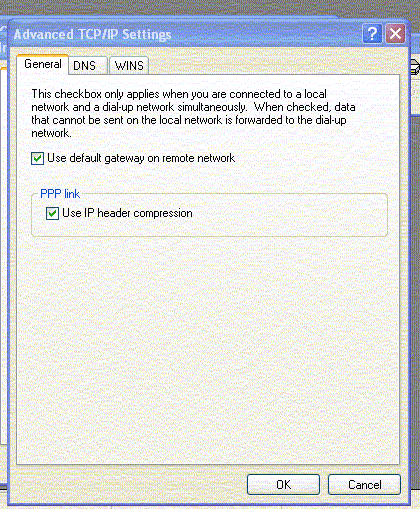
23.) In the "Advanced TCP/IP Settings" window,
"General" screen, · "Use default gateway on remote network" · "Use IP header compression"
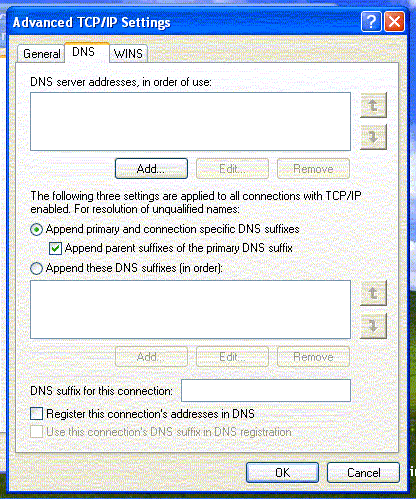
24.) In the "Advanced TCP/IP Settings" screen, click on the "DNS" tab. In the "DNS" screen, select the following options: · "Append primary and connection specific DNS suffixes" · "Append parent suffixes of the primary DNS suffix"
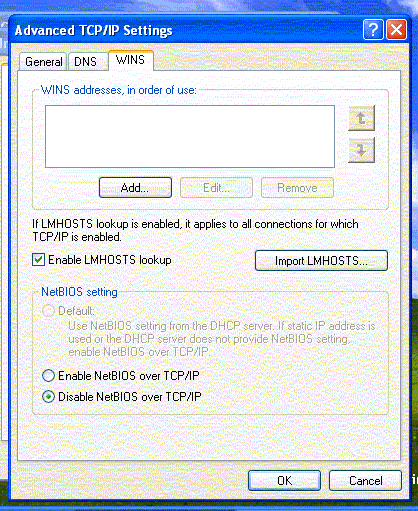
25.) In the "Advanced TCP/IP Settings" screen, click on the "WINS" tab. In the "WINS" screen, select the following options (sample screen below): · "Enable LMHOSTS lookup" · "Disable NetBIOS over TCP/IP" At the bottom of the "Advanced TCP/IP Settings", click the "OK" button.
26.) In the "Internet Protocol (TCP/IP) Properties" window, "General" screen, click the "OK" button. 27.) In the "CVC Internet Properties" window, click on the "OK" button. 28.) In the "Network Connection" window, click on the "X"
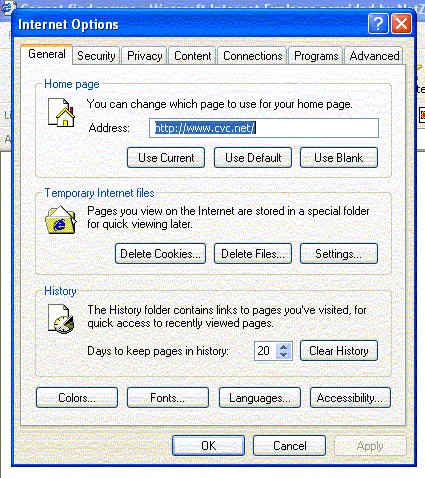
button, to close the window - Step 2 - Browser Configurations - 1.) On the desktop, click on the "Start" menu and select "Microsoft Internet Explorer". In the "Internet Explorer" program, click on the "Tools" menu and select "Internet Options". 2.) In the "Internet Options" window, "General" screen, "Home page" section, "Address" field, enter http://www.cvc.net
3.) In the "Internet Options" window, click on the "Connection" tab. In the "Connection" screen, complete the following: · In the "Dial-up and Virtual Private Network settings" field, make sure CVC Internet is showing as the default setting. · Select the option: "Dial whenever a network connection is not present". At the bottom of the "Internet Options" window, click on the "Apply" button, and then click on the "OK" button. 4.) At the top of the "Internet Explorer" window, click on the "File" menu, and select "Close". - Step 3: Mail Configurations For CVC Hosted E-mail (mail.cvc.net) ~ 1.) On the desktop (computer's main screen), click
on the "Start" menu (at the bottom left-hand corner
of the desktop screen), select "Outlook Express". 2.) If a "Connection Wizard", or a "Connect To Window" appears, cancel it. 3.) Click on the "Tools" menu (at the
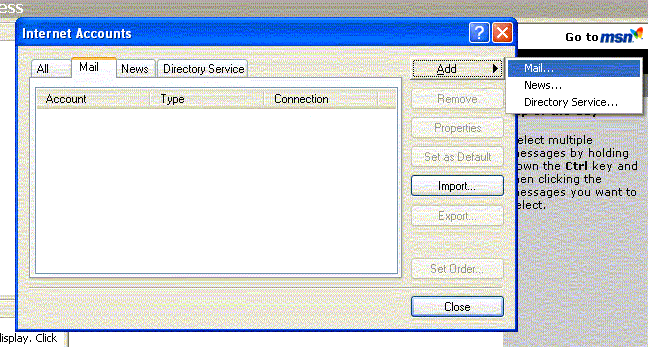
top of the Outlook Express window), 4.) In the "Internet Accounts" screen, click on the "Mail" tab. 5.) If you have a existing account listed in the "Mail/Account" window, and would like to remove this account before creating a new account, click once on the mailbox (shown underneath the Account menu), then click the Remove button. When a window appears, asking you if you want to remove the account, click Yes. Please Note: If there is no Account shown in the Mail (tab) window, or you wish to keep the current Account and create a new CVC mail account, skip this step and go to step #6. 6.) Next, click the "Add" button (on
the right-hand side of the Internet Accounts window),
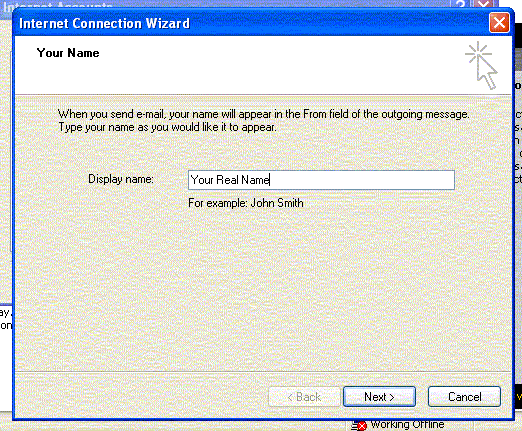
7.) In the next window "Your Name", in the
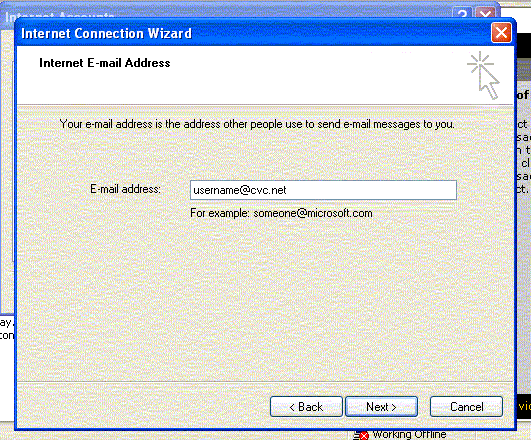
"Display" field, enter: your real name, then . 8.) In the next window "Internet E-mail Address", in the field "E-mail Address", enter: e-mail address (in lowercase, no spaces), then click on the "Next" button (sample window below).
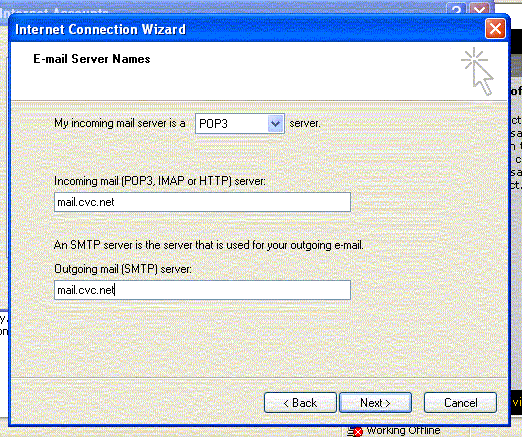
9.) In the next window "E-mail Server Names", complete the following (see sample window below):
Click on the Next button (on the bottom of the screen).
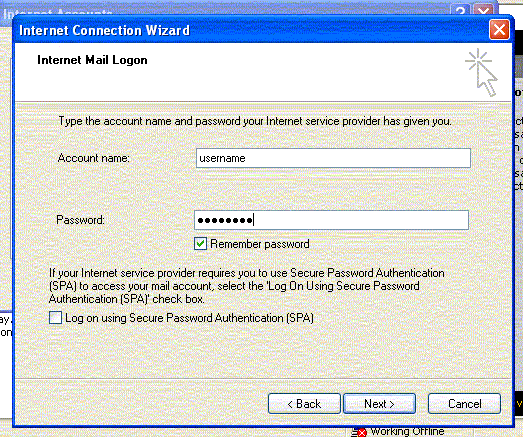
10.) In the next screen, "Internet Mail Logon", enter the following (sample screen below):
Click on the "Next" button (at the
bottom of the screen).
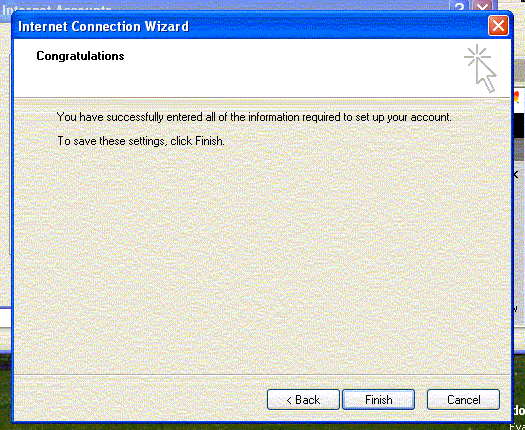
11.) In the next window "Congratulations", click the "Finish" button (see sample screen below).
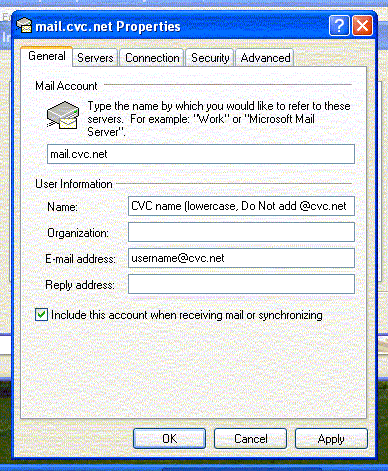
12.) In the "Internet Accounts" window, click once on the mail.cvc.net account, then click on the "Properties" button (on the right-hand side menu). In the "mail.cvc.net Properties" window, click on the "General" screen, and complete the following (see sample below):
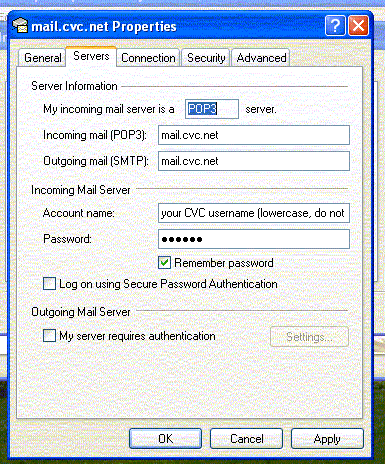
13.) At the top of the" mail.cvc.net Properties" window, click on the "Servers" tab. In the "Servers" screen, complete the following (sample screen below):
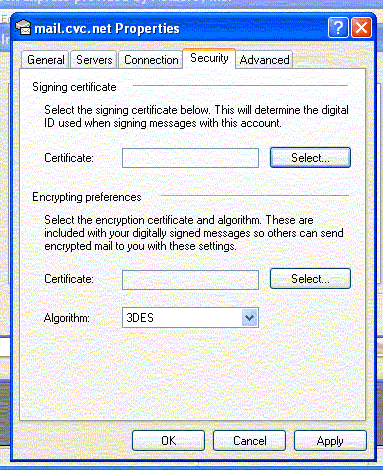
14.) At the top of the “Properties" window, click on the "Security" tab. In the "Security" screen, the only option that should be active, is the "Algorithm (3DES)". (sample screen)
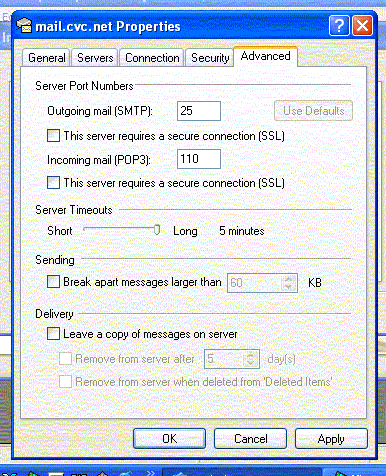
15.) At the top of the “Properties" window, click on the "Advanced" tab. In the "Advanced" screen, check the following options (see sample below):
In the section "Server Timeouts", move the arrow to: Long 5 minutes In the section "Sending", Do Not select the option "Break apart messages larger than". In the section "Delivery", Do Not select the option "Leave a copy of messages on server".
16.) At the bottom of the "Properties" window, click on the "Apply" button, then click on the "OK" button. 17.) At the bottom of the “Internet Accounts” window, click “Close”. 18.) At the top of the “Outlook Express” window, click on the “Tools” menu and select “Options”. At the top of the “Options” window, click on the “Connections” tab. In the “Connections” screen, the only
option that should be select is “Ask
Before Switching Dial-up Connections”. 19.) Go to the top of the “Options” window and click on the “Security” tab. The only option that should be selected is “Restricted site zone”. At the bottom of the “Options” window, click “Apply” and then click “OK”. 20.) In the "Outlook Express" main window, click on the "File" menu (located at the top of the Outlook Express window), then select "Close". Your Finished! For more information on using e-mail or browsing the Internet, refer to the "Help" menu, located within the software program. Microsoft Products FAQ’s Online Database Phone: Phone: Phone: Phone: Copyright
© 1996-2001, CVC Internet. All rights reserved. |